
How to qualify service leads with a request form
A service request page should collect enough information to choose the right next action without turning the form into an interrogation. The best questions help you qualify, route, or prepare for the conversation.
If an answer will not change your response, priority, routing, or preparation, remove the question. Shorter forms usually earn more submissions; useful questions improve what happens after the submission.
1. Define qualification before writing the form
Write down the factors that make a request a fit. For a consultant, those might be the business type, problem, timeline, and approximate project scope. For a contractor, they might be service area, project type, property details, and timing.
Avoid asking for exact budgets or sensitive information unless it genuinely changes the next step. Explain why a question matters when it may feel intrusive.
2. Choose a request-oriented template
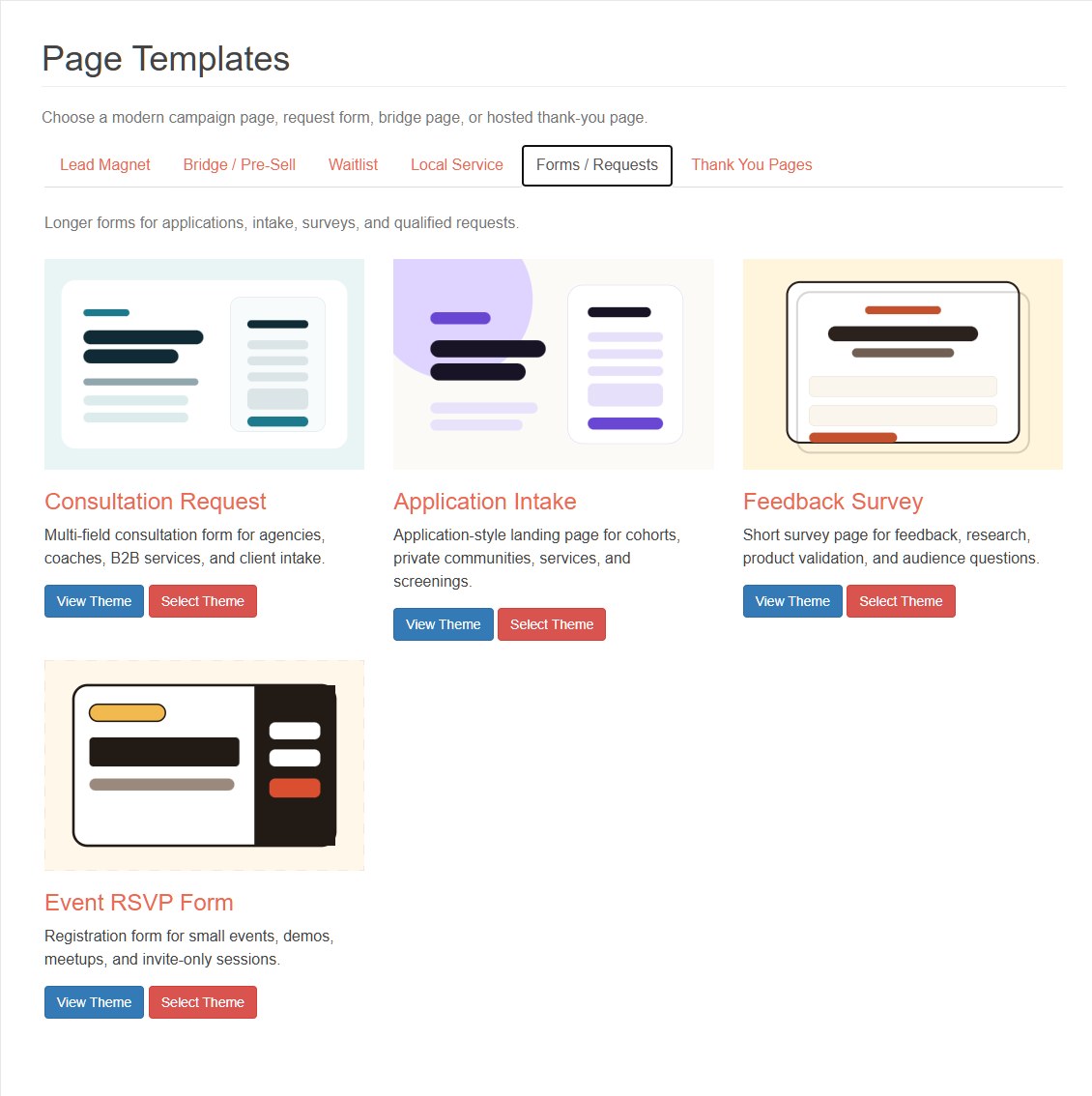
QuickPages separates request and application templates from simple email opt-ins. Open Forms / Requests for consultation, application, survey, and event-response layouts. Local service templates provide additional structures for estimates, callbacks, and discovery calls.
3. Write the promise before the questions
The page should explain what the visitor receives after submitting: an estimate, an initial review, a callback, an eligibility decision, or a consultation. State the response expectation honestly.
Useful trust points include the service area, typical project type, response process, and whether the first conversation has any obligation. Avoid vague claims such as "best service guaranteed."
4. Edit fields and labels in the visual editor
Select visible content inside the preview or choose a field from the inspector. Review the labels and placeholders as a complete conversation rather than as isolated inputs.
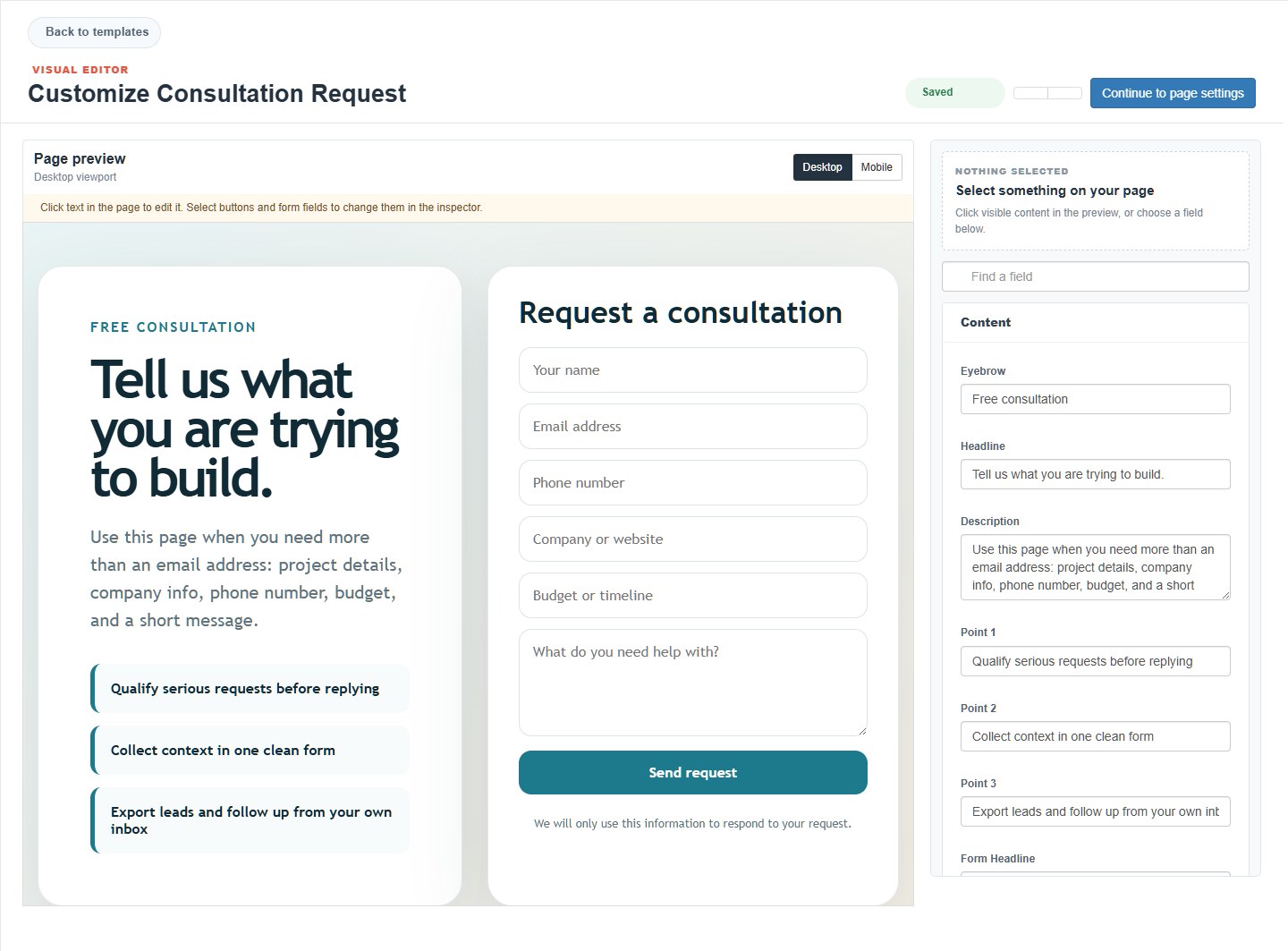
A practical consultation form might ask for:
- Name and email for the reply.
- Phone only when a callback is part of the stated process.
- Company or website for context.
- Budget or timeline when it changes fit or scheduling.
- One open question describing the desired result.
QuickPages templates currently provide a defined field set for each page type. You can edit the visible labels and placeholders, but you should choose the template whose included questions most closely match the request you need to collect.
| Question | Keep it only when it changes |
|---|---|
| Phone number | Whether or how the team calls the lead |
| Budget | Eligibility, routing, or the recommended service |
| Timeline | Priority or availability |
| Project description | Preparation for the first reply or call |
5. Design the mobile form for completion
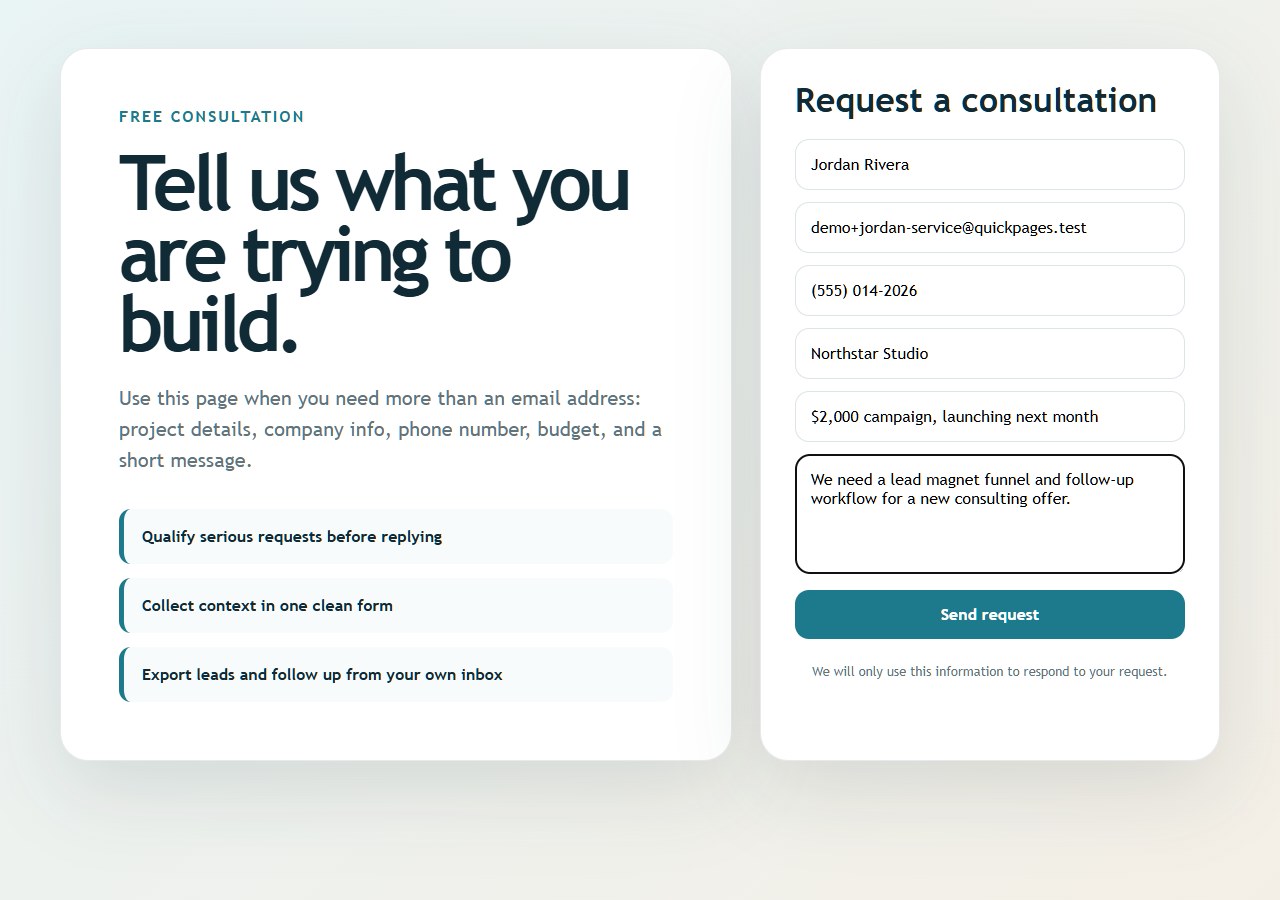
Long forms feel longer on a phone. Use the mobile preview and confirm that labels remain readable, inputs are large enough, the submit button is obvious, and the visitor can understand the offer before reaching the questions.
6. Choose the confirmation path
Use a hosted QuickPages thank-you page when you need to explain the review process, offer a booking link, or provide preparation instructions. Use an external URL when the next action belongs in a calendar, portal, or another website.
The confirmation should state when and how the visitor can expect a response. Do not promise an immediate personal review if the process is actually manual and may take longer.
7. Review submitted information in the lead inbox
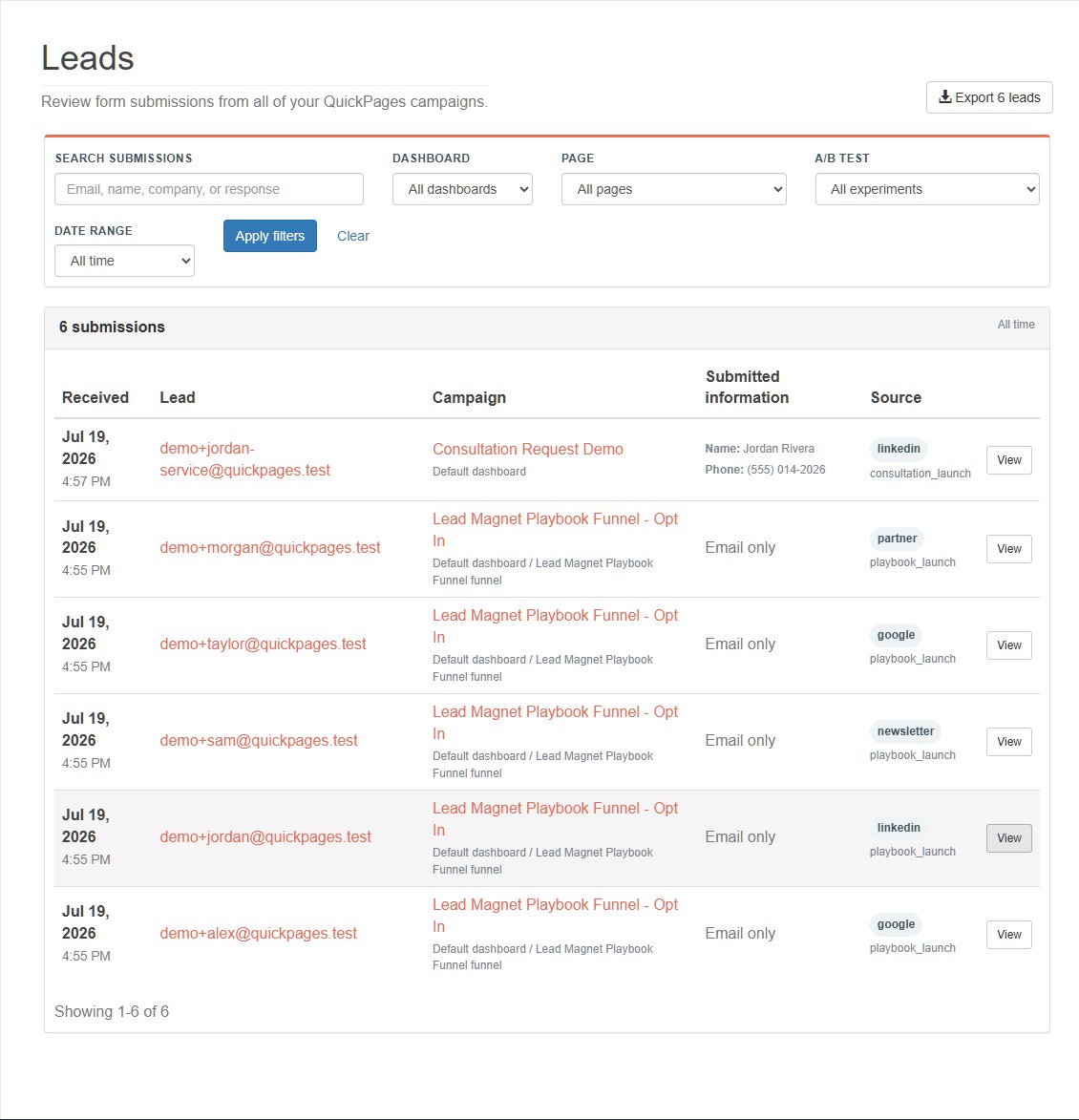
QuickPages stores the email and additional submitted fields together. The lead inbox also displays the campaign, source, and captured time, which helps you prioritize and follow up with context.
8. Route qualified requests automatically
For a small volume, filter and export requests from the lead inbox. For immediate routing, connect the premium conversion webhook to Zapier. Map the email, name, company, project answers, page name, and source into the destination CRM, spreadsheet, or notification.
Use conditional steps in the automation only after confirming that optional fields can be missing. A blank budget or company should not break the whole workflow.
9. Measure quality as well as conversion rate
A shorter form may increase submissions while creating more unqualified work. Track the complete path: page conversion, reply rate, qualified rate, booked calls, proposals, and customers.
If the page converts poorly, choose a template with a shorter field set or strengthen the promise. If volume is high but quality is weak, choose a request template with the qualifying fields your team actually uses and clarify who the service is for.
Build a form your team can act on
Ask only the questions that improve the next step, test the complete confirmation path, and keep campaign source information attached to every request.
Create a request page